

Ready, set,
Coral Quest.
Set up together with your parent or caregiver, then follow the practice plan from your clinic.
Before you begin
Have your clinic’s download link, iPhone, stable phone stand, and assigned equipment ready.
Review note: supported iPhones and minimum iOS version are awaiting confirmation.
- 01
Install and open
Open the download link provided by your clinic on the iPhone you will use for practice. Install the app, then open it. A parent or caregiver may need to approve the download.
No account or sign-in is required inside Coral Quest.
- 02
Set up camera tracking
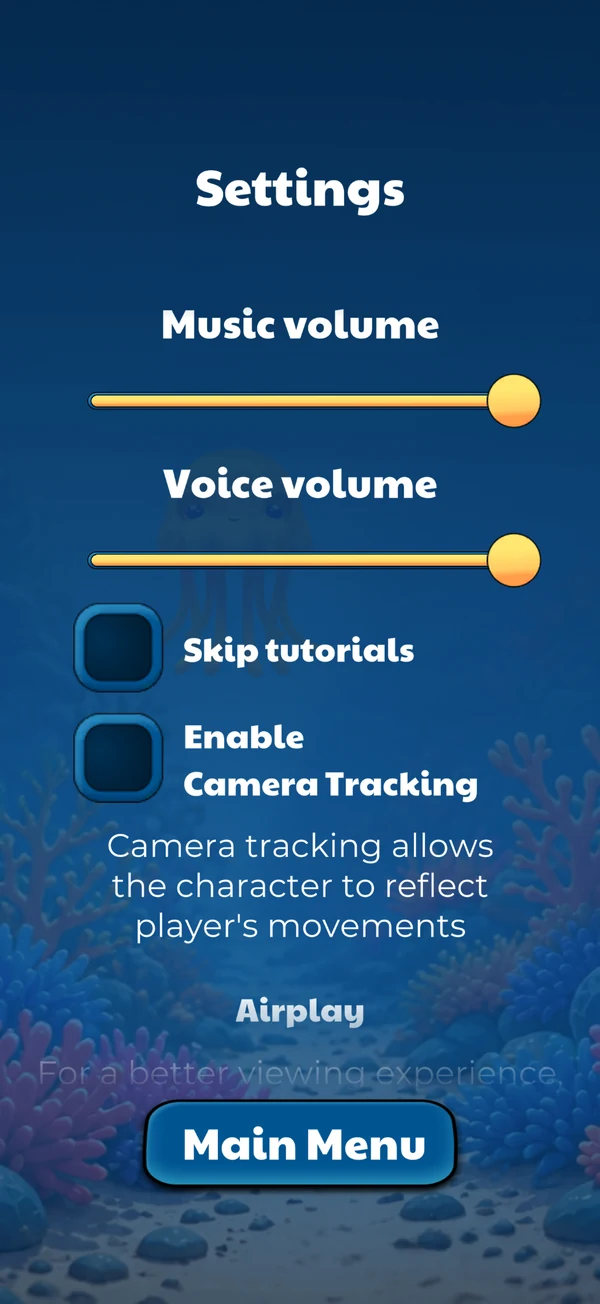
Open Settings. Allow camera access if prompted, turn on Enable Camera Tracking, and leave Skip Tutorials off for your first session.
The camera helps the diver follow your movements. Use the tracking mode your clinic recommends.
Tap image to view full size - 03
Choose your activities
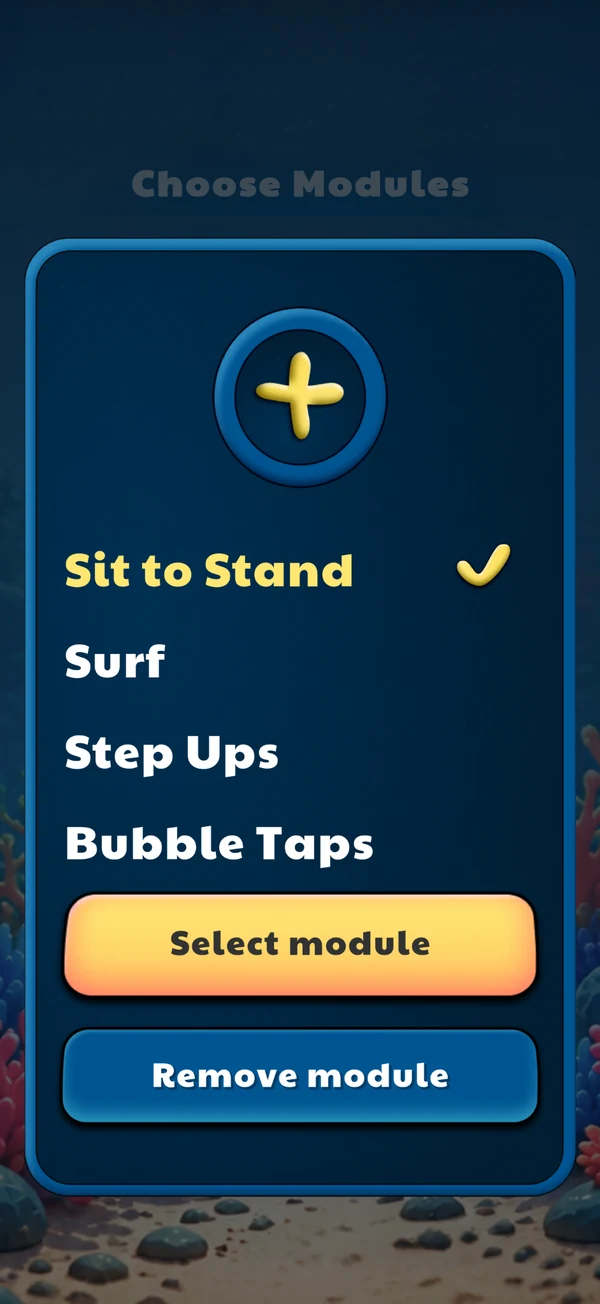
Return to Main Menu and select Play. Select between one and four activities in the order your therapist assigned, then press Confirm.
Your therapist’s plan tells you which activities to practice and how often.
Tap image to view full size - 04
Position your phone
Select Continue on Phone. Place the iPhone upright on a stable stand with the screen and front-facing camera toward you. Choose a clear, well-lit space.
A TV is optional. You can complete your session on the iPhone.
- 05
Step into view
Press Next. Stand approximately 5–7 feet from the phone with your whole body in view. Hold both arms out to the sides, slightly above shoulder height. Wait for the green progress line to fill.
If calibration does not finish, check your lighting and make sure your whole body is visible.
- 06
Follow the diver
After calibration, watch the tutorial and follow your assigned activities. Use the movements, equipment, and assistance your therapist showed you.
The app proceeds through your selected activities.
- 07
Review and bring your results
After your activities, the Reports screen shows the exercises you completed. Reports are currently stored on your iPhone.
Bring this phone to your next clinic visit. Your therapist will look at the reports and record the results.
Your setup, explained
Can I practice without camera tracking?
Yes. With tracking disabled, the diver demonstrates the movements, but your movements are not tracked. Ask your clinic which mode to use for your practice.
Can I use a TV?
The app offers Cast to TV using iPhone screen mirroring to an Apple TV. TV use is optional; Continue on Phone is the main setup described here. Ask your caregiver or clinic for help with your TV setup.
Your quick start companion
A two-page guide to setup and the four activities.
Review draft: clinic details and the download link are still placeholders. Use the web instructions for the current Reports and support process.